Exclusive
To get our best deals and discounts Subscribe Below!
Continue As A Guest
Continue As A Guest
Updata
Hey! Thank you so much for your support and quality posts for V Show!
And congratulations on becoming our Vipon Associated Editor.
From now on, in addition to getting 10 points for each post (up to 30 points daily), we will regularly review each of your articles, and each approved article (tagged with Featured label) will be paid an additional $50.
Note: Not all articles you posted will get $50, only those that meet our requirements will be paid, and articles or contents that do not meet the requirements will be removed.
Please continue to produce high quality content for organic likes. Our shoppers love seeing your stories & posts!
Congratulations! Your V SHOW post Planting Tips has become our Featured content, we will pay $50 for this post. Please check on your balance. Please continue to produce high quality original content!
Greetings to the world of iPhones! If you are changing from a different smartphone or are experiencing a smartphone for the first time, Apple's iPhone provides an intuitive and easy-to-use experience. This guide has been created for iPhone for new users to make them familiar with the basic features, explore their device, and customize their experience easily.
The iPhone is easy to set up and only takes a few minutes. To do it, follow these steps:
Power On – Hold down the side button until the Apple logo is displayed.
Follow On-Screen Instructions – Select your desired language and country.
Connect to Wi-Fi – Choose a network and input the password.
Set Up Face ID or Touch ID – Utilize biometric authentication for an added level of security.
Sign in with Apple ID – This account is required to access iCloud, the App Store, and Apple services.
Restore or Transfer Data – Use iCloud, iTunes, or Quick Start if you’re moving from another iPhone.
The home screen is the hub for all your apps and features.
App Icons – Tap to open, long-press to rearrange or delete apps.
Dock – The apps in the bottom row are your most frequently used apps.
App Library – Swipe left to find all your apps arranged in an organized way.
Get to it fast – Swipe down from top-right (iPhone X and later) or swipe up from the bottom (iPhone SE, 8, and prior).
Change settings – Turn on/off Wi-Fi, Bluetooth, brightness, and sound.
Customize it – Go to Settings > Control Center to include quick-access actions.
Your iPhone includes apps that are already installed to assist you in staying connected and productive.
Messages – Send texts, photos, and videos via iMessage.
Phone – Receive and make calls, check voicemail, and handle contacts.
Camera – Capture high-quality photos and videos with various modes.
Photos – Organize, edit, and share photos. Use the "For You" tab for smart photo suggestions.
Surf the web – Open several tabs and bookmark pages.
Reading List – Bookmark articles to read offline.
Make your iPhone personal with these personalization options.
Navigate to Settings > Wallpaper and choose an image for your home and lock screen.
Organize your apps with App Library.
Make folders by dragging one app onto another.
Hide home screen pages for a minimalistic look.
Customize alerts under Settings > Notifications.
Turn on Do Not Disturb to quiet notifications during specific hours.
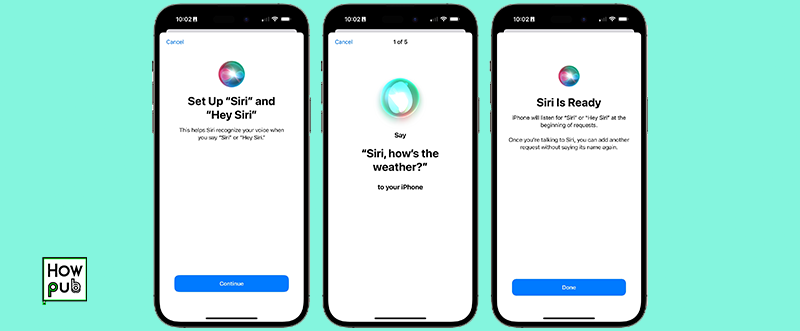
Siri can perform many tasks with voice commands.
Say "Hey Siri" or press and hold the side button.
Make a call – "Call Dad."
Send a message – "Text Sarah: I'll be there soon."
Set a reminder – "Remind me to take my medicine at 8 PM."
Get directions – "Drive to the closest coffee shop."
Turn on automatic updates in Settings > General > Software Update.
Face ID/Touch ID – Configure biometric sign in for enhanced security.
Find My iPhone – Track your phone with the Find My app if lost.
App Permissions – Adjust privacy settings in Settings > Privacy.
Add cards to pay with in the Wallet app.
Use Apple Pay to make secure transactions in stores and online.
Monitor your physical activity, sleep, and important health data.
Add Medical ID so that emergency personnel can access your health information.
Back up your iPhone – Automatically store your photos, contacts, and settings.
Adjust storage under Settings > [Your Name] > iCloud.
Follow these instructions, and iPhone for new users can rapidly become accustomed to their phone and its powerful tools. The more you play with and customize your iPhone, the more comfortable and productive you will be. So enjoy your new iPhone and its effortless experience!
Greetings to the world of iPhones! If you are changing from a different smartphone or are experiencing a smartphone for the first time, Apple's iPhone provides an intuitive and easy-to-use experience. This guide has been created for iPhone for new users to make them familiar with the basic features, explore their device, and customize their experience easily.
The iPhone is easy to set up and only takes a few minutes. To do it, follow these steps:
Power On – Hold down the side button until the Apple logo is displayed.
Follow On-Screen Instructions – Select your desired language and country.
Connect to Wi-Fi – Choose a network and input the password.
Set Up Face ID or Touch ID – Utilize biometric authentication for an added level of security.
Sign in with Apple ID – This account is required to access iCloud, the App Store, and Apple services.
Restore or Transfer Data – Use iCloud, iTunes, or Quick Start if you’re moving from another iPhone.
The home screen is the hub for all your apps and features.
App Icons – Tap to open, long-press to rearrange or delete apps.
Dock – The apps in the bottom row are your most frequently used apps.
App Library – Swipe left to find all your apps arranged in an organized way.
Get to it fast – Swipe down from top-right (iPhone X and later) or swipe up from the bottom (iPhone SE, 8, and prior).
Change settings – Turn on/off Wi-Fi, Bluetooth, brightness, and sound.
Customize it – Go to Settings > Control Center to include quick-access actions.
Your iPhone includes apps that are already installed to assist you in staying connected and productive.
Messages – Send texts, photos, and videos via iMessage.
Phone – Receive and make calls, check voicemail, and handle contacts.
Camera – Capture high-quality photos and videos with various modes.
Photos – Organize, edit, and share photos. Use the "For You" tab for smart photo suggestions.
Surf the web – Open several tabs and bookmark pages.
Reading List – Bookmark articles to read offline.
Make your iPhone personal with these personalization options.
Navigate to Settings > Wallpaper and choose an image for your home and lock screen.
Organize your apps with App Library.
Make folders by dragging one app onto another.
Hide home screen pages for a minimalistic look.
Customize alerts under Settings > Notifications.
Turn on Do Not Disturb to quiet notifications during specific hours.
Siri can perform many tasks with voice commands.
Say "Hey Siri" or press and hold the side button.
Make a call – "Call Dad."
Send a message – "Text Sarah: I'll be there soon."
Set a reminder – "Remind me to take my medicine at 8 PM."
Get directions – "Drive to the closest coffee shop."
Turn on automatic updates in Settings > General > Software Update.
Face ID/Touch ID – Configure biometric sign in for enhanced security.
Find My iPhone – Track your phone with the Find My app if lost.
App Permissions – Adjust privacy settings in Settings > Privacy.
Add cards to pay with in the Wallet app.
Use Apple Pay to make secure transactions in stores and online.
Monitor your physical activity, sleep, and important health data.
Add Medical ID so that emergency personnel can access your health information.
Back up your iPhone – Automatically store your photos, contacts, and settings.
Adjust storage under Settings > [Your Name] > iCloud.
Follow these instructions, and iPhone for new users can rapidly become accustomed to their phone and its powerful tools. The more you play with and customize your iPhone, the more comfortable and productive you will be. So enjoy your new iPhone and its effortless experience!
Are you sure you want to stop following?
Loading…
Congrats! You are now a member!
Start requesting vouchers for promo codes by clicking the Request Deal buttons on products you want.
Sellers of Amazon products are required to sign in at www.amztracker.com
More information about placing your products on this site can be found here.
Are you having problems purchasing a product with the supplied voucher? If so, please contact the seller via the supplied email.
Also, please be patient. Sellers are pretty busy people and it can take awhile to respond to your emails.
After 2 days of receiving a voucher you can report the seller to us (using the same button) if you cannot resolve this issue with the seller.
For more information click here.
We have taken note and will also convey the problems to the seller on your behalf.
Usually the seller will rectify it soon, we suggest now you can remove this request from your dashboard and choose another deal.
If you love this deal most, we suggest you can try to request this deal after 2 days.
This will mark the product as purchased. The voucher will be permanently removed from your dashboard shortly after. Are you sure?
You are essentially competing with a whole lot of other buyers when requesting to purchase a product. The seller only has a limited amount of vouchers to give out too.
Select All Groups
✕
Adult Products
Arts, Crafts & Sewing
Automotive & Industrial
Beauty & Grooming
Cell Phones & Accessories
Electronics & Office
Health & Household
Home & Garden
Jewelry
Kitchen & Dining
Men's Clothing & Shoes
Pet Supplies
Sports & Outdoors
Toys, Kids & Baby
Watches
Women's Clothing & Shoes
Other
Adult Products
©Copyright 2026 Vipon All Right Reserved · Privacy Policy · Terms of Service · Do Not Sell My Personal Information
Certain content in this page comes from Amazon. The content is provided as is, and is subject
to change or removal at
any time. Amazon and the Amazon logo are trademarks of Amazon.com,
Inc. or its affiliates.
Comments