Exclusive
To get our best deals and discounts Subscribe Below!
Continue As A Guest
Continue As A Guest
Updata
Hey! Thank you so much for your support and quality posts for V Show!
And congratulations on becoming our Vipon Associated Editor.
From now on, in addition to getting 10 points for each post (up to 30 points daily), we will regularly review each of your articles, and each approved article (tagged with Featured label) will be paid an additional $50.
Note: Not all articles you posted will get $50, only those that meet our requirements will be paid, and articles or contents that do not meet the requirements will be removed.
Please continue to produce high quality content for organic likes. Our shoppers love seeing your stories & posts!
Congratulations! Your V SHOW post Planting Tips has become our Featured content, we will pay $50 for this post. Please check on your balance. Please continue to produce high quality original content!
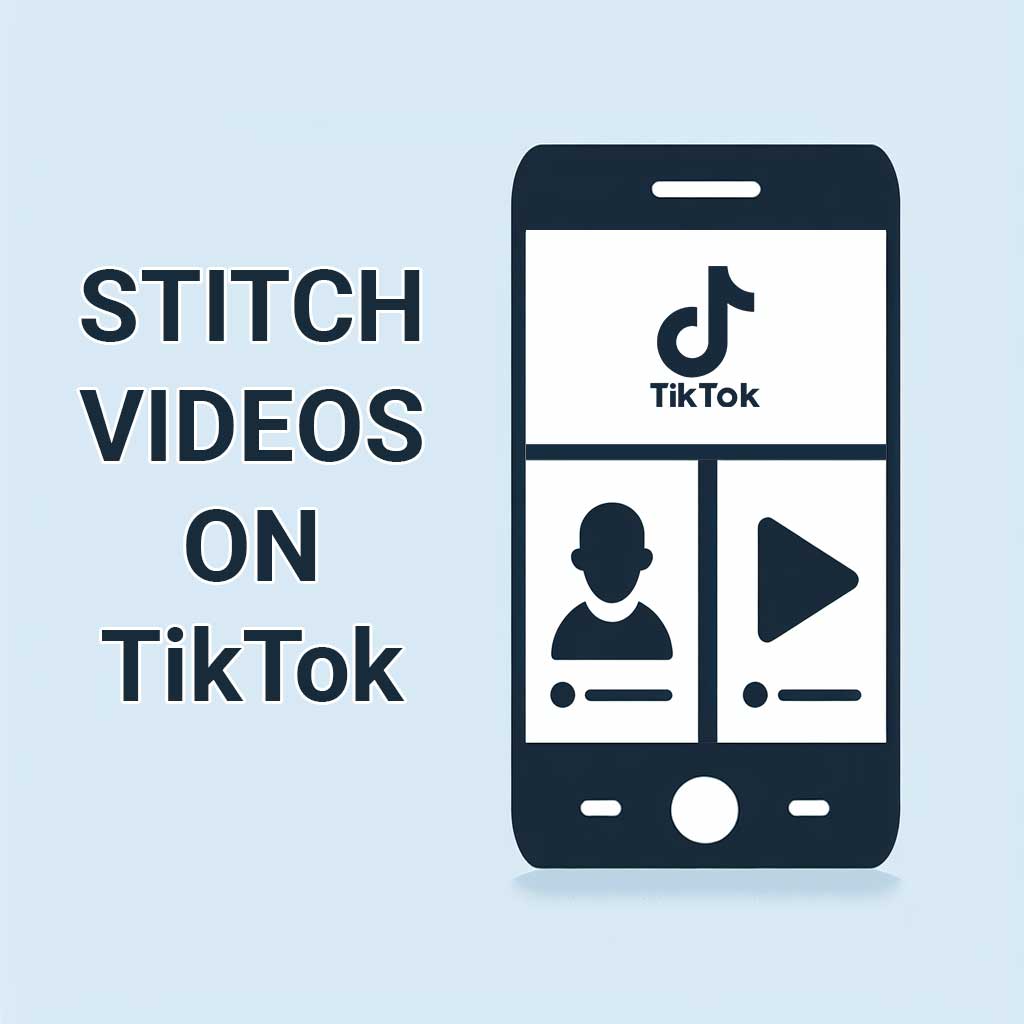
One of the wealthiest features of TikTok is its Stitch feature, with which users can bring different video content together, responding to one another distinctly but creatively. TikTok has a lot of in-app resources and instruments for shooting and editing video — from effects and music to filters — making any video more enjoyable. Among all these features is the Stitch feature, released on July 24, 2020; it has gained much popularity very fast. In this article, we'll cover how to use Stitch and some tricks on how you can optimize the feature.

1. Open TikTok and Find a Video: Open the TikTok app and locate the video you would like to stitch.
2. Tap the Share Button: Hit the Share button.
3. Choose Stitch: At the bottom of your screen, scroll and choose Stitch.
4. Pick a Section: Just pick the section of your video you want to work with and click Next.
5. Record Reaction: Choose the duration that you want to set for your recording and click the button with the red color so you can record your reaction.
6. Edit Your Video: Add any text, stickers, filters, or other effects you want, and then when it's all done, tap Next.
7. Post Your Video: You can write out a description for your video and throw in some hashtags if you'd like before you tap Post.
Note: If the Stitch option is unavailable, it implies the original video creators have disabled it for the videos they post.
In this method, first you have to download the video you want to stitch from TikTok. You can use this TikTok Downloader to download videos from TikTok. After you have downloaded the video, record your reaction video using a video editing application such as CapCut and add it to the end of the original video.
It is very important what video you choose to react to. Because if the video is not interesting enough, it will not engage the audience, and they will stop seeing your reaction. So, choose a reaction video that is interesting and engaging enough to entice users to watch your reaction.
Before you record your reaction video, it's a good idea to think about the best reaction you can come up with. Creative and unique reactions attract more attention.
Viewers need to clearly see and hear your reaction. Therefore, the quality of the video and audio you record is very important. Try to record the video in a quiet and echo-free place. You can use an external microphone to increase the sound clarity.
Choose a place to record that has good lighting. If you don't want to use artificial lights, you can sit in front of the window so that the natural light shines directly on you. In order for the light to spread evenly, you can use thin and transparent curtains.
But if natural light is not available, you can use an artificial light source such as a reading light or ring light. You can also use a diffuser to spread light and eliminate shadows.
If your video needs editing, you can add text, stickers, effects or filters to it using TikTok tools. Using these tools will help make your video more attractive.
Although entering hashtags and captions is not required to publish a video, it plays an important role in its virality. TikTok uses this information in its video recommendation system. Therefore, it is better to use relevant and popular hashtags for your video. Also, try to enter appropriate and complete text for the caption.
1. Open the TikTok app, go to the profile section, and open the desired video.
2. Tap the More Options icon.
3. Tap on Privacy and turn the Allow Stitch option off.
1. Open your profile and then tap the Menu button located in the upper left corner of the screen.
2. Tap Settings, then Privacy.
3. Tap on Stitch.
4. Tap on Stitch and select the Only Me option.
Stitch is one of the special features of TikTok that allows users to react to other people's videos and publish their reactions as new videos. When you stitch a video on TikTok, your video will play after the original video.
Although the Stitch feature is built into the TikTok app, you can stitch videos using video editing tools such as CapCut. To do this, you must first download the original video using a TikTok downloader such as SnapTik, and after downloading the video, record your reaction video using a video editing program such as CapCut and add it to the end of the original video.
One of the wealthiest features of TikTok is its Stitch feature, with which users can bring different video content together, responding to one another distinctly but creatively. TikTok has a lot of in-app resources and instruments for shooting and editing video — from effects and music to filters — making any video more enjoyable. Among all these features is the Stitch feature, released on July 24, 2020; it has gained much popularity very fast. In this article, we'll cover how to use Stitch and some tricks on how you can optimize the feature.

1. Open TikTok and Find a Video: Open the TikTok app and locate the video you would like to stitch.
2. Tap the Share Button: Hit the Share button.
3. Choose Stitch: At the bottom of your screen, scroll and choose Stitch.
4. Pick a Section: Just pick the section of your video you want to work with and click Next.
5. Record Reaction: Choose the duration that you want to set for your recording and click the button with the red color so you can record your reaction.
6. Edit Your Video: Add any text, stickers, filters, or other effects you want, and then when it's all done, tap Next.
7. Post Your Video: You can write out a description for your video and throw in some hashtags if you'd like before you tap Post.
Note: If the Stitch option is unavailable, it implies the original video creators have disabled it for the videos they post.
In this method, first you have to download the video you want to stitch from TikTok. You can use this TikTok Downloader to download videos from TikTok. After you have downloaded the video, record your reaction video using a video editing application such as CapCut and add it to the end of the original video.
It is very important what video you choose to react to. Because if the video is not interesting enough, it will not engage the audience, and they will stop seeing your reaction. So, choose a reaction video that is interesting and engaging enough to entice users to watch your reaction.
Before you record your reaction video, it's a good idea to think about the best reaction you can come up with. Creative and unique reactions attract more attention.
Viewers need to clearly see and hear your reaction. Therefore, the quality of the video and audio you record is very important. Try to record the video in a quiet and echo-free place. You can use an external microphone to increase the sound clarity.
Choose a place to record that has good lighting. If you don't want to use artificial lights, you can sit in front of the window so that the natural light shines directly on you. In order for the light to spread evenly, you can use thin and transparent curtains.
But if natural light is not available, you can use an artificial light source such as a reading light or ring light. You can also use a diffuser to spread light and eliminate shadows.
If your video needs editing, you can add text, stickers, effects or filters to it using TikTok tools. Using these tools will help make your video more attractive.
Although entering hashtags and captions is not required to publish a video, it plays an important role in its virality. TikTok uses this information in its video recommendation system. Therefore, it is better to use relevant and popular hashtags for your video. Also, try to enter appropriate and complete text for the caption.
1. Open the TikTok app, go to the profile section, and open the desired video.
2. Tap the More Options icon.
3. Tap on Privacy and turn the Allow Stitch option off.
1. Open your profile and then tap the Menu button located in the upper left corner of the screen.
2. Tap Settings, then Privacy.
3. Tap on Stitch.
4. Tap on Stitch and select the Only Me option.
Stitch is one of the special features of TikTok that allows users to react to other people's videos and publish their reactions as new videos. When you stitch a video on TikTok, your video will play after the original video.
Although the Stitch feature is built into the TikTok app, you can stitch videos using video editing tools such as CapCut. To do this, you must first download the original video using a TikTok downloader such as SnapTik, and after downloading the video, record your reaction video using a video editing program such as CapCut and add it to the end of the original video.
Are you sure you want to stop following?
Loading…
Congrats! You are now a member!
Start requesting vouchers for promo codes by clicking the Request Deal buttons on products you want.
Sellers of Amazon products are required to sign in at www.amztracker.com
More information about placing your products on this site can be found here.
Are you having problems purchasing a product with the supplied voucher? If so, please contact the seller via the supplied email.
Also, please be patient. Sellers are pretty busy people and it can take awhile to respond to your emails.
After 2 days of receiving a voucher you can report the seller to us (using the same button) if you cannot resolve this issue with the seller.
For more information click here.
We have taken note and will also convey the problems to the seller on your behalf.
Usually the seller will rectify it soon, we suggest now you can remove this request from your dashboard and choose another deal.
If you love this deal most, we suggest you can try to request this deal after 2 days.
This will mark the product as purchased. The voucher will be permanently removed from your dashboard shortly after. Are you sure?
You are essentially competing with a whole lot of other buyers when requesting to purchase a product. The seller only has a limited amount of vouchers to give out too.
Select All Groups
✕
Adult Products
Arts, Crafts & Sewing
Automotive & Industrial
Beauty & Grooming
Cell Phones & Accessories
Electronics & Office
Health & Household
Home & Garden
Jewelry
Kitchen & Dining
Men's Clothing & Shoes
Pet Supplies
Sports & Outdoors
Toys, Kids & Baby
Watches
Women's Clothing & Shoes
Other
Adult Products
©Copyright 2026 Vipon All Right Reserved · Privacy Policy · Terms of Service · Do Not Sell My Personal Information
Certain content in this page comes from Amazon. The content is provided as is, and is subject
to change or removal at
any time. Amazon and the Amazon logo are trademarks of Amazon.com,
Inc. or its affiliates.
Comments