Exclusive
To get our best deals and discounts Subscribe Below!
Continue As A Guest
Continue As A Guest
Updata
Hey! Thank you so much for your support and quality posts for V Show!
And congratulations on becoming our Vipon Associated Editor.
From now on, in addition to getting 10 points for each post (up to 30 points daily), we will regularly review each of your articles, and each approved article (tagged with Featured label) will be paid an additional $50.
Note: Not all articles you posted will get $50, only those that meet our requirements will be paid, and articles or contents that do not meet the requirements will be removed.
Please continue to produce high quality content for organic likes. Our shoppers love seeing your stories & posts!
Congratulations! Your V SHOW post Planting Tips has become our Featured content, we will pay $50 for this post. Please check on your balance. Please continue to produce high quality original content!
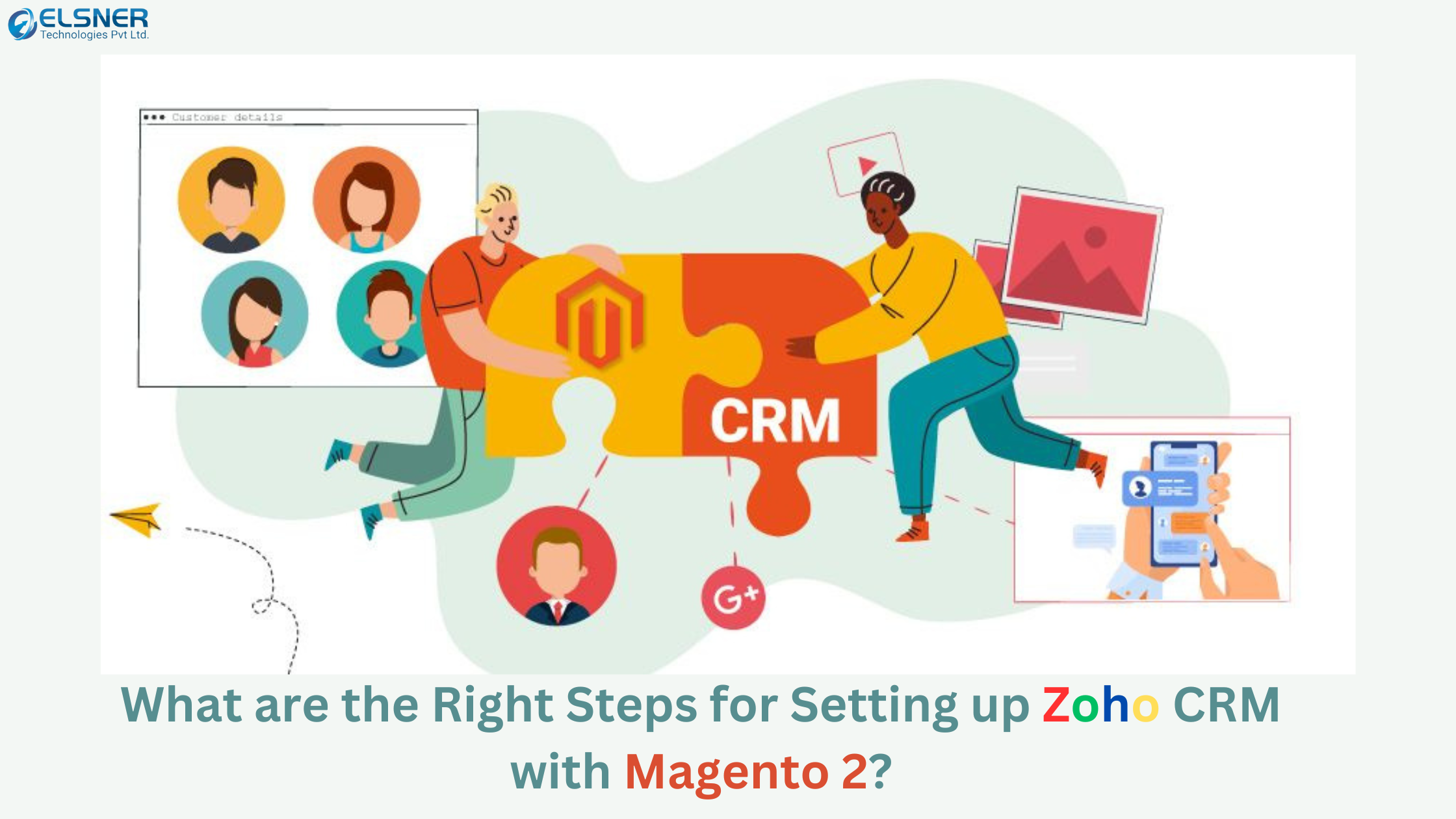
By seeking the integration of Zoho CRM with that of your Magento store, you will be able to build your relationship with customers and handle certain sales operations better. Not just that, but with an added Zoho Inventory Magento 2 integration alongside CRM, you will also be able to collectively keep a tab on your inventory or stock updates as well.
The end purpose of seeking Zoho integration with Magento 2 is to help analyze the behavior and demand patterns of the customers. Following that, the CRM solution will provide you with the feature of categorizing leads out of analyzed behavior data of potential Magento store customers.
Later, you can use the advanced report extension for Magento 2 to create reports on the collected data and use it for making informed business decisions! Moreover, the collective practice of using Zoho products, especially CRM, with Magento 2 will help you drive more conversions for the business.
In this article, you will get an insight into the adequate steps you must follow in order to set up Magento 2 with Zoho CRM.
Here are the steps that you must follow to integrate Magento 2 with Zoho CRM:
Firstly, you must configure your Zoho API and then generate a ‘client-secret’ code. You can do the same by following the steps below:
Access the Zoho API Console and use your credentials to log in. Now, click on ‘Add Client’ to get started and then choose ‘Server-Based Applications’.
Now, enter the site name, authorized redirect URL and homepage URL. Following that, you can enter the ‘Update’ button.
Now, click on the ‘Client Secret’ tab, and then copy the given ID and code, which is important for integrating Zoho CRM with that of your Magento 2 store.
Now, move to the ‘Settings’ tab and set the given configuration options as per your specific business needs.
Now that you have installed the specific Zoho CRM integration extension for your Magento store, it is time to seek the configuration. The sub-steps are as follows:
Enter the extension settings and then add the client ID and Client Secret code, which you copied from the Zoho API Console. Following that, choose the domain user, add the Zoho email address and redirect the URL.
Now, click on ‘ Get Access Token’ to connect the store with Zoho.
Go back to your Zoho hub, log in by using the credentials and accept the integration request sent from the Magento store. Accept all terms and conditions specified!
Return to the Magento 2 admin panel and ensure that your connection status is showing ‘Connected’ and is green in color.
These are the steps that you must follow in order to integrate Zoho CRM and Magento 2 stores. In case you want to use any other products of Zoho, the process will be the same. But the only difference will be the type of extension you download.
Suppose you want to integrate Zoho Inventory into your Magento 2 store. In that case, you will need the specific Zoho Inventory Magento 2 extension, followed by all the other steps for successfully integrating both platforms.
By seeking the integration of Zoho CRM with that of your Magento store, you will be able to build your relationship with customers and handle certain sales operations better. Not just that, but with an added Zoho Inventory Magento 2 integration alongside CRM, you will also be able to collectively keep a tab on your inventory or stock updates as well.
The end purpose of seeking Zoho integration with Magento 2 is to help analyze the behavior and demand patterns of the customers. Following that, the CRM solution will provide you with the feature of categorizing leads out of analyzed behavior data of potential Magento store customers.
Later, you can use the advanced report extension for Magento 2 to create reports on the collected data and use it for making informed business decisions! Moreover, the collective practice of using Zoho products, especially CRM, with Magento 2 will help you drive more conversions for the business.
In this article, you will get an insight into the adequate steps you must follow in order to set up Magento 2 with Zoho CRM.
Here are the steps that you must follow to integrate Magento 2 with Zoho CRM:
Firstly, you must configure your Zoho API and then generate a ‘client-secret’ code. You can do the same by following the steps below:
Access the Zoho API Console and use your credentials to log in. Now, click on ‘Add Client’ to get started and then choose ‘Server-Based Applications’.
Now, enter the site name, authorized redirect URL and homepage URL. Following that, you can enter the ‘Update’ button.
Now, click on the ‘Client Secret’ tab, and then copy the given ID and code, which is important for integrating Zoho CRM with that of your Magento 2 store.
Now, move to the ‘Settings’ tab and set the given configuration options as per your specific business needs.
Now that you have installed the specific Zoho CRM integration extension for your Magento store, it is time to seek the configuration. The sub-steps are as follows:
Enter the extension settings and then add the client ID and Client Secret code, which you copied from the Zoho API Console. Following that, choose the domain user, add the Zoho email address and redirect the URL.
Now, click on ‘ Get Access Token’ to connect the store with Zoho.
Go back to your Zoho hub, log in by using the credentials and accept the integration request sent from the Magento store. Accept all terms and conditions specified!
Return to the Magento 2 admin panel and ensure that your connection status is showing ‘Connected’ and is green in color.
These are the steps that you must follow in order to integrate Zoho CRM and Magento 2 stores. In case you want to use any other products of Zoho, the process will be the same. But the only difference will be the type of extension you download.
Suppose you want to integrate Zoho Inventory into your Magento 2 store. In that case, you will need the specific Zoho Inventory Magento 2 extension, followed by all the other steps for successfully integrating both platforms.
Are you sure you want to stop following?
Loading…
Congrats! You are now a member!
Start requesting vouchers for promo codes by clicking the Request Deal buttons on products you want.
Sellers of Amazon products are required to sign in at www.amztracker.com
More information about placing your products on this site can be found here.
Are you having problems purchasing a product with the supplied voucher? If so, please contact the seller via the supplied email.
Also, please be patient. Sellers are pretty busy people and it can take awhile to respond to your emails.
After 2 days of receiving a voucher you can report the seller to us (using the same button) if you cannot resolve this issue with the seller.
For more information click here.
We have taken note and will also convey the problems to the seller on your behalf.
Usually the seller will rectify it soon, we suggest now you can remove this request from your dashboard and choose another deal.
If you love this deal most, we suggest you can try to request this deal after 2 days.
This will mark the product as purchased. The voucher will be permanently removed from your dashboard shortly after. Are you sure?
You are essentially competing with a whole lot of other buyers when requesting to purchase a product. The seller only has a limited amount of vouchers to give out too.
Select All Groups
✕
Adult Products
Arts, Crafts & Sewing
Automotive & Industrial
Beauty & Grooming
Cell Phones & Accessories
Electronics & Office
Health & Household
Home & Garden
Jewelry
Kitchen & Dining
Men's Clothing & Shoes
Pet Supplies
Sports & Outdoors
Toys, Kids & Baby
Watches
Women's Clothing & Shoes
Other
Adult Products
©Copyright 2026 Vipon All Right Reserved · Privacy Policy · Terms of Service · Do Not Sell My Personal Information
Certain content in this page comes from Amazon. The content is provided as is, and is subject
to change or removal at
any time. Amazon and the Amazon logo are trademarks of Amazon.com,
Inc. or its affiliates.
Comments